Terminal > Knowledge & collaboration
Team management
Create or join a team to collaborate with others in Warp.
A Warp team is a group of users who collaborate through a shared workspace in Warp Drive. Teams share Workflows, Notebooks, Prompts, Rules, and Environment Variables, with role-based permissions for admins and members.
What is a team?
Section titled “What is a team?”A team is a group of Warp users who can collaborate on the command line together. Warp teams can share a dedicated workspace in Warp Drive. Learn about pricing and see our Pricing FAQ.
Creating a team
Section titled “Creating a team”You can create a new team in the following ways:
- Warp Drive, + Create a team
- Settings > Teams
Before you can invite team members, you will need to give your team a meaningful name. We suggest using a name to represent your organization, company, or project.
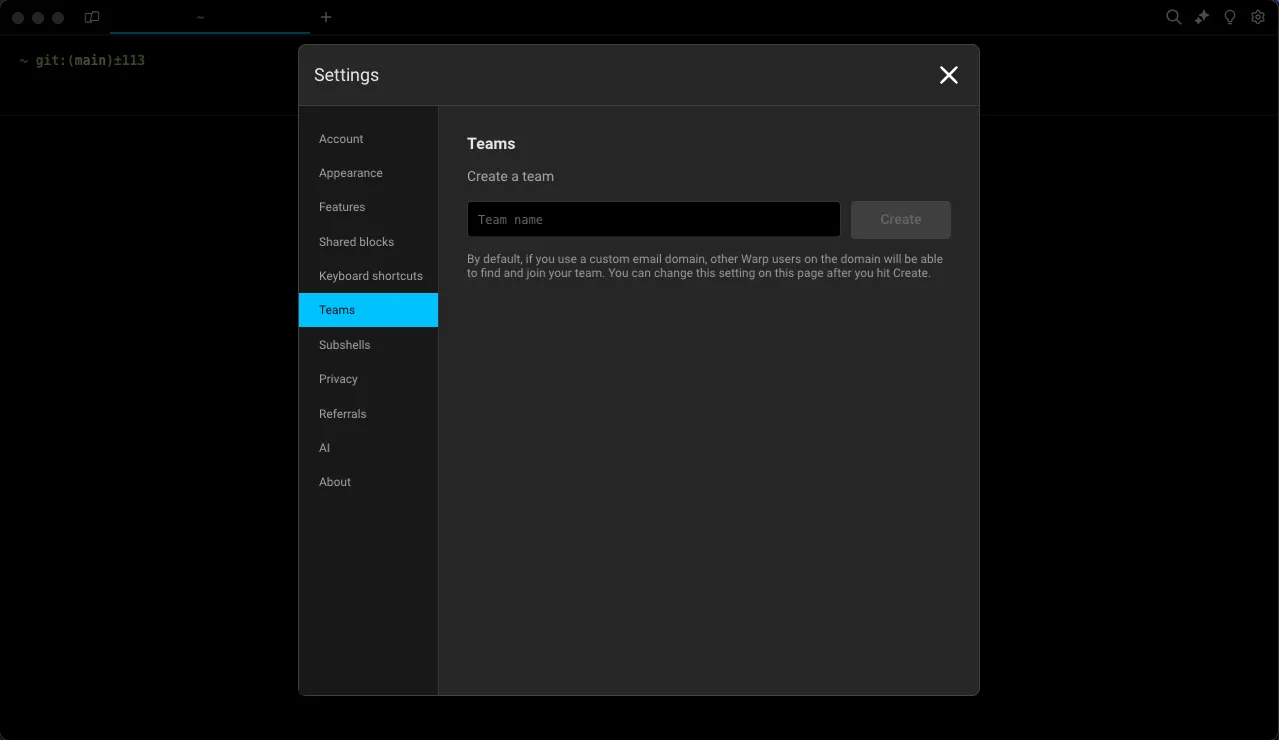
If you create a team, you become the team’s admin and will be the only person who can delete the team. Reference Team roles and permissions for more info.
Inviting new team members
Section titled “Inviting new team members”Under Settings > Teams you can copy the invite link for your Warp team and paste it to your clipboard.
Warp Terminal and local agent teams
Section titled “Warp Terminal and local agent teams”Upgrading a team to a paid Warp Terminal and local agent subscription includes your own account and all active members in billing. New members also become paid seats. Charges are prorated for the time each member has access during the monthly or annual cycle; a member joining halfway through a monthly cycle incurs half of that seat’s monthly fee.
Warp Factories teams
Section titled “Warp Factories teams”The Scale plan for Warp Factories charges one team subscription rather than a subscription fee for each member. Factory runs use shared team or workspace funding, not each member’s included personal allowance. Enterprise member billing follows your contract.
Review member billing before inviting members.
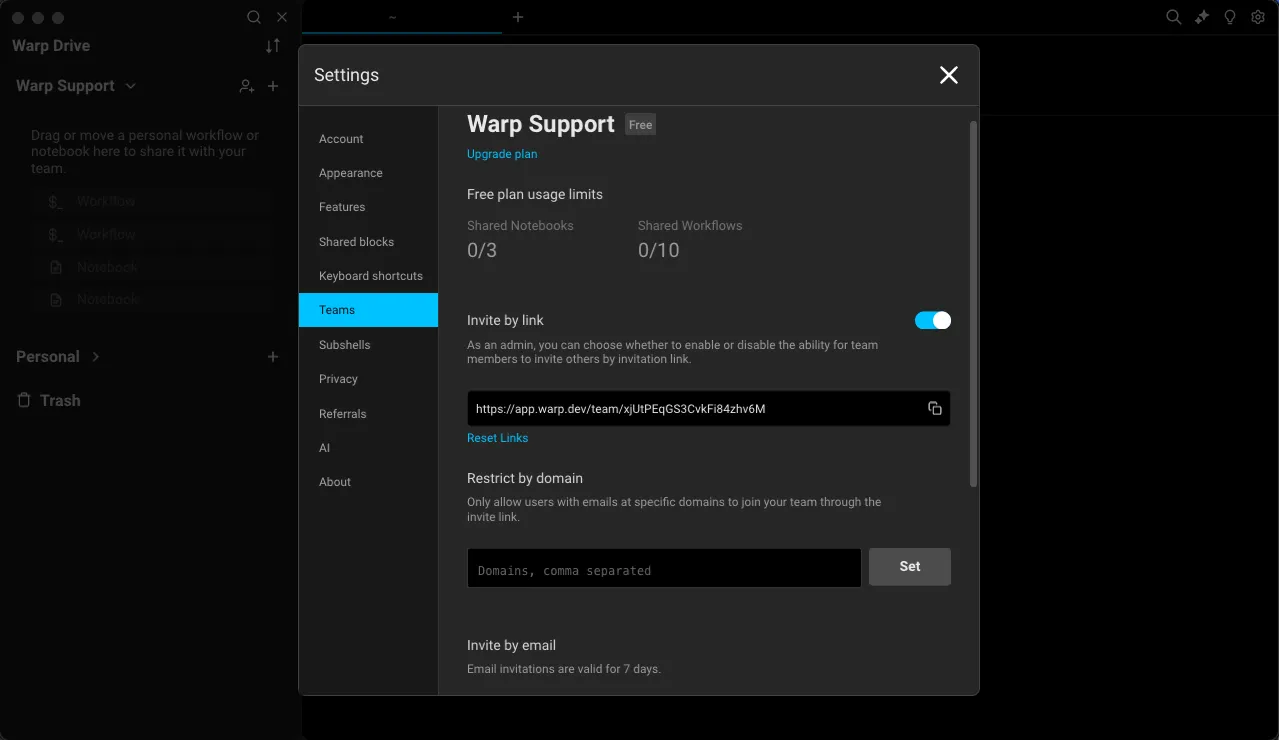
When you share this link with your teammates directly (we suggest using a secure channel like Slack or email), they can join your team in Warp.
Restricting team invites by domain
Section titled “Restricting team invites by domain”You can restrict your team so that people can only join if they also authenticate with a specific email domain, such as your company’s email domain.
Toggle on Restrict by domain to set an explicit allowlist.
If you share an invite link with somebody who’s using Warp with a domain that does not match your allowlist, they will be prompted to authenticate from an emailed link sent to a matching domain to join your team.
Joining a team
Section titled “Joining a team”If you have received an invite link, you can use that link to sign up or log in and join your team in Warp. If your team is using domain restriction, you will need to authenticate you have access to a specific domain before you can join your team.
Leaving and deleting teams
Section titled “Leaving and deleting teams”If you’re a member of a team, you can visit Settings > Teams to leave a team at any time. Team admins (who created teams) may delete a team only after removing all team members.
Purchased usage stays tied to the team that bought it. Leaving or being removed ends your access to that balance; rejoining restores access to unused, unexpired usage. On per-seat subscriptions, rejoining adds a prorated seat charge for the remaining billing cycle. See usage when team membership changes and member billing.
Team discoverability
Section titled “Team discoverability”Team admins can make their teams discoverable to colleagues from the same email domain. This feature is available under Settings > Teams > Make team discoverable.
Transferring team admin
Section titled “Transferring team admin”Team admins can transfer their role to another team member by going to Settings > Teams > Transfer admin and selecting the member to whom you’d like to transfer the admin role.
Team roles and permissions
Section titled “Team roles and permissions”| Action | Admin | Member |
|---|---|---|
| Description | The Warp user who created the team. There can only be one. | Team members who belong to the team. |
| Create a team | ✓ | |
| Restrict by domain | ✓ | |
| Invite members | ✓ | ✓ |
| Remove team members | ✓ | |
| Leave a team | ✓ | |
| Delete a team | ✓ | |
| Transfer admin | ✓ | |
| Manage billing | ✓ |
Multi-team workspaces use workspace roles for company-wide administration.